You tell Fromly "meeting with the client at 10" in the chat, and the task or event gets created in the right context — no form to fill out. But to see the shape of your whole day — what's fixed and what still needs a slot — you need more than the chat. You need a timeline.
That's the classic split: tasks in one place, calendar in another. You spend more time reconciling the two than actually working. Fromly's Planner eliminates that gap by putting your tasks and Google Calendar events on a single timeline.
The problem with split systems
Here's a typical scenario: you have a 10am call, a 2pm review, and somewhere in between you need to finish a deliverable, respond to three people, and prep for tomorrow. Your calendar shows the calls. Your task list shows the rest. Neither tells you whether the day is actually feasible.
The result is constant context-switching. You check the calendar, switch to tasks, try to mentally slot things in, and end up either over-committing or forgetting something important. The system doesn't reflect reality — you're managing two separate models of your day.
Fromly treats time as structure, not metadata. When you drag a task to a time block, you're not adding a due date — you're making a commitment on your actual schedule.
How Fromly's Planner works
The Planner is a time-based view inside Fromly. When you open it, the right-hand column automatically stays on the Today tab — your day's agenda, ready to drag — right next to the timeline of time blocks. Your Google Calendar events appear directly inside that timeline — no import, no sync delay. When a meeting lands on your calendar, Fromly already knows about it.
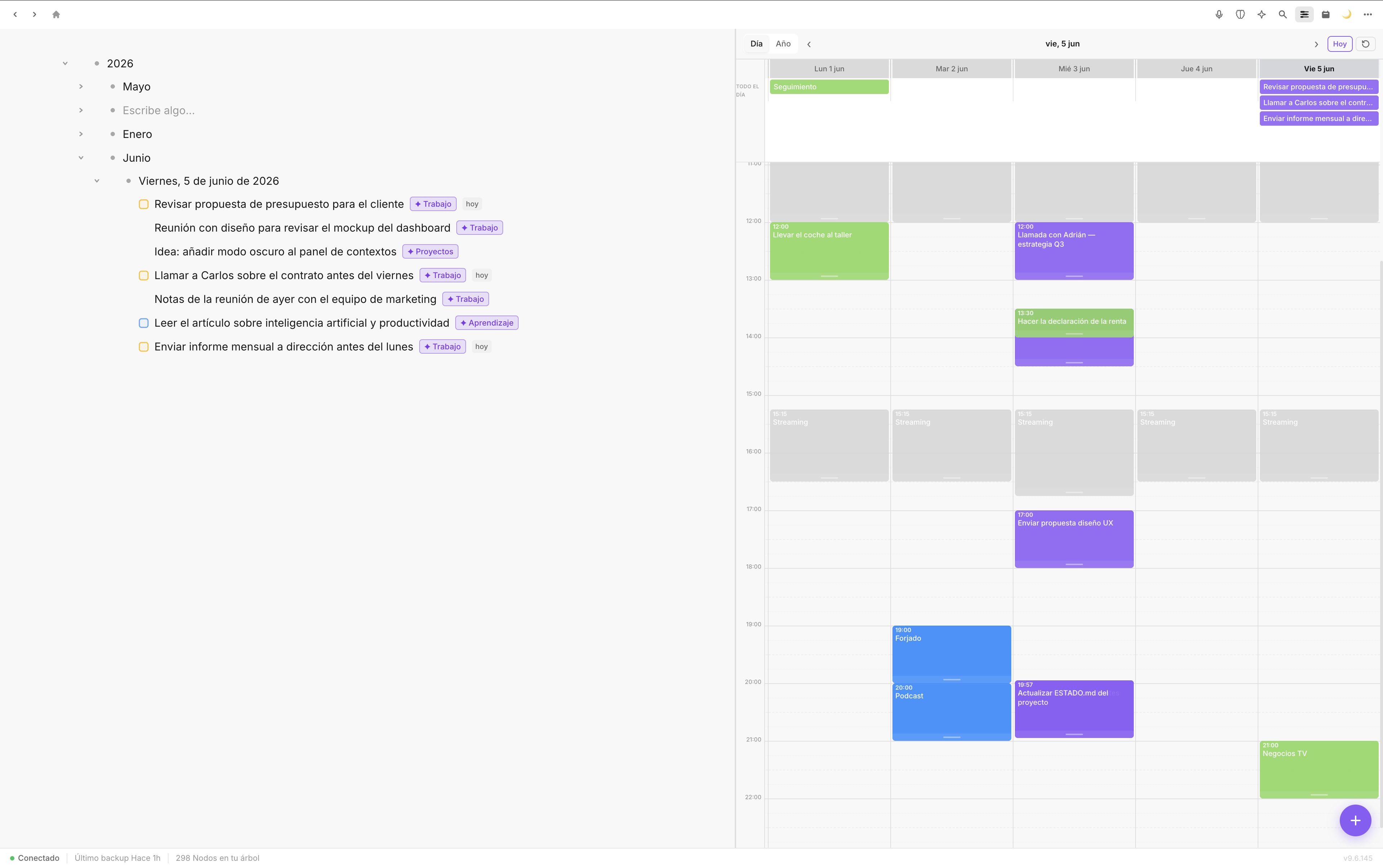
The Planner shows your time blocks and calendar events side by side in a single view.
On top of that, any task you've created in Fromly — whether it's a quick to-do, something inside a project context, or a line you captured in today's note — sits right there in the Today tab and can be dragged directly onto a time slot. The moment you do, Fromly knows you've scheduled that task for that time. No due date field. No form to fill out. Just drag.
What gets shown in the Planner
- Google Calendar events: All your connected calendars appear in the timeline automatically. Meetings, reminders, personal blocks — everything.
- Scheduled tasks: Any task you drag to a slot becomes a time block on your Planner.
- Today's note: The daily note surfaces alongside your schedule so context is always at hand.
Using the Planner in practice
Start your morning in the Planner. You'll immediately see your meetings for the day — the 9:30 standup, the 12:00 lunch block, the 4pm client call. Between those events are open slots. That's your real available time.
Since the Today tab is already open next to the timeline, your tasks are right there — no need to go looking for them. The deliverable that needs to go out before noon? Drag it to the 10:30 slot. The email you've been putting off? Slot it at 11:15. You're not estimating — you're deciding.
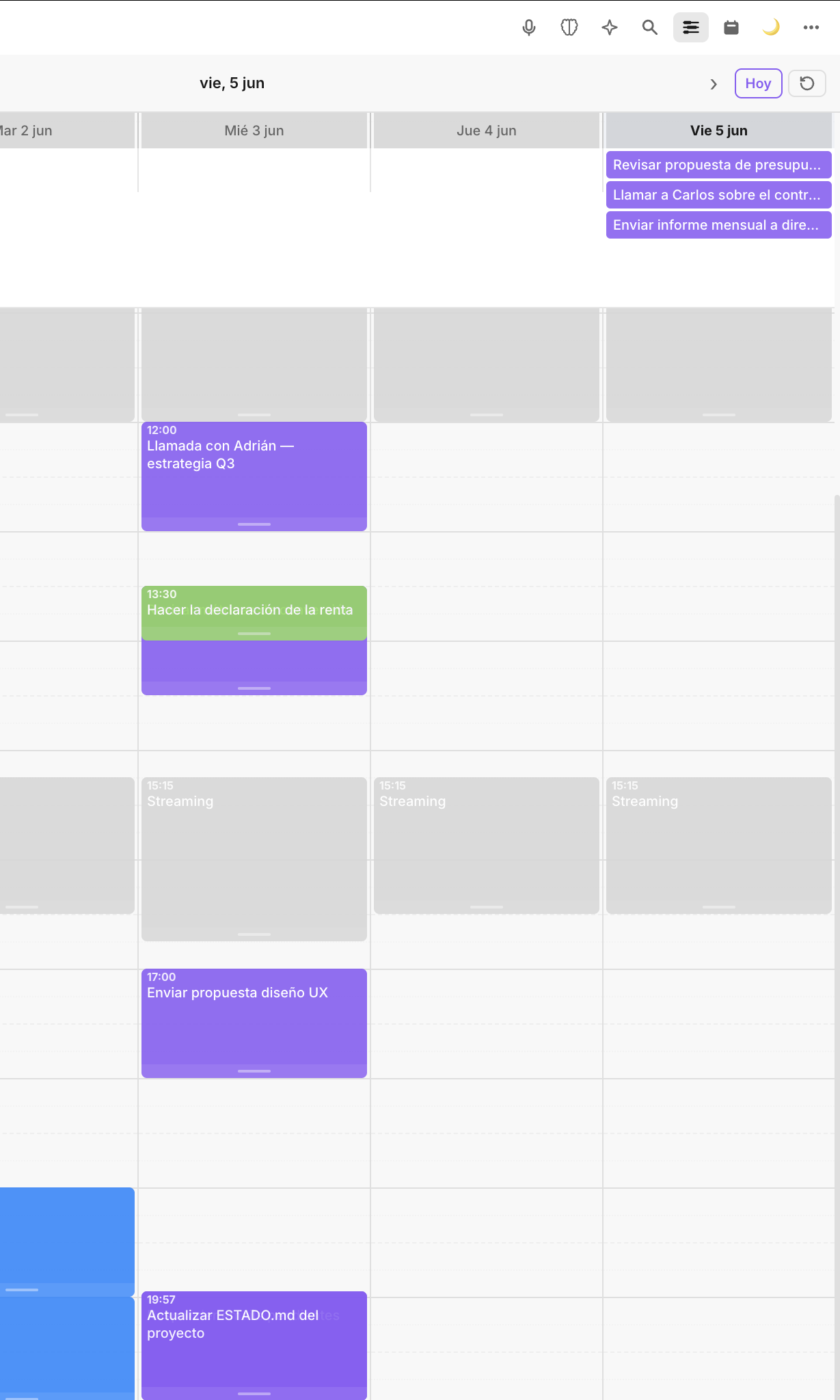
Tasks sit next to calendar events. Drag to schedule. The day becomes concrete.
Fromly doesn't require you to set durations manually. You decide how much space each task takes by how you place it. The visual layout gives you immediate feedback: if you've stacked five tasks into two hours of real time, you'll see it — and you can adjust before the day starts.
Working with calendar events
Calendar events from Google appear as blocks in the timeline. Fromly reads them as real commitments — not decorations. If you have a 90-minute meeting, that space is visually occupied and Fromly treats it as unavailable for task placement.
This matters because Fromly understands your actual capacity. It's not showing you a list and hoping you do the math. The Planner makes the math visual and immediate.
Tasks that move with you
If something doesn't get done, you don't lose it. Unfinished tasks stay in your list. You can drag them to tomorrow's Planner, reschedule them, or leave them pending — Fromly keeps track without requiring you to manually clean up a schedule that didn't survive contact with reality.
One view is enough. You don't need a separate app for scheduling. The Planner is where your notes, tasks, and calendar converge — and Fromly keeps them in sync automatically.
Setting it up
- Connect your Google account from Fromly's settings. Calendar events will appear in the Planner immediately.
- Open the Planner from the header button or the keyboard shortcut.
- The right column opens on the Today tab automatically — your tasks are already there, next to the timeline.
- Drag the task to the time slot where you want to work on it.
- Repeat until your available time is accounted for.
That's the full setup. No configuration files. No integration layers. Fromly detects your calendar, understands your tasks, and gives you one place to plan.
The result
Planning your day stops being a chore and becomes a two-minute ritual. You open the Planner, see what's fixed, fill the gaps with what matters, and start. Fromly handles the connection between your commitments and your intentions — so you don't have to.
Stop managing two systems. Let Fromly hold both, and get back to doing the actual work.