Saving anything from the web shouldn't take three steps
You're reading an article. There's a paragraph that's exactly what you needed — a stat, a quote, a reference. What do you do? Copy it, switch apps, open a note, paste it, try to remember where you found it, maybe add the URL manually. By the time you're done, you've lost the thread of what you were doing.
This is the tax most tools charge you for capturing information. Fromly doesn't.
The Fromly Chrome extension brings that zero-friction capture directly into your browser. Two gestures, and it's in Fromly — with context, with the source, without breaking your flow.
The two ways it works
Save an entire page
Click the Fromly icon in your Chrome toolbar. The extension creates a new resource in your active context (or today's agenda if you don't have one open) with the page title and URL already filled in. No copying, no pasting, no switching windows. One click and the resource is saved.
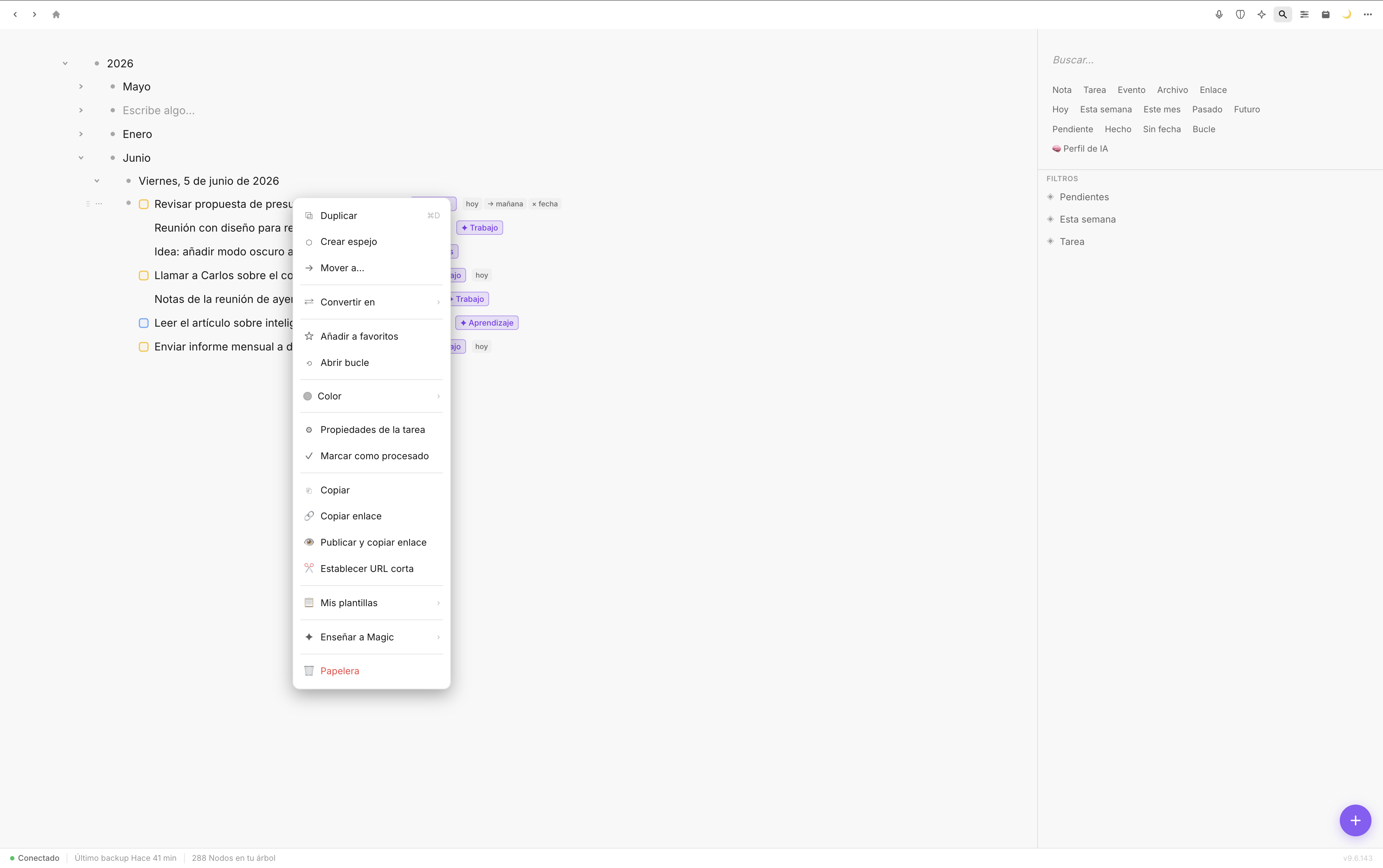
Right-click on any selection to send it directly to Fromly
Save a specific selection
Highlight any text on any page. Right-click. You'll see Send to Fromly in the context menu. Click it. Fromly saves the selected text as a note, with the source URL attached. You don't even open Fromly to do it.
That's it. Those are the two interactions. There's no form to fill out, no folder to choose, no tag to assign. Fromly figures out where to put it and how to structure it.
Why this matters more than it sounds
Capture tools fail at the last step. They're fast to save but slow to retrieve. You end up with a pile of bookmarks you never open, a "read later" list that grows forever, a notes app full of context-free snippets.
Fromly is different because what you save doesn't just sit there. It becomes part of a system Fromly already understands. When you save a resource, Fromly knows it's a resource. When you capture a paragraph from a research article, Fromly treats it as a note with a source — not a random text dump. Ask the chat about it later and it brings it back, citing where it came from.
Fromly doesn't store clippings. It stores meaning. The difference is what you can do with them later: filter, link, connect to tasks, surface in context when you need them.
Concrete examples of how people use it
- Research and reading: You're reading a long report. You highlight three separate paragraphs across different sections — each goes into Fromly as its own note, all tagged with the source URL. Later you find them filtered under your research context, not buried in a single giant clipping.
- Saving tools and references: You find a new tool you want to try. Click the extension icon. The page is saved as a resource. When you open Fromly later, it's right there — title, URL, ready to action.
- Quick task capture: You're on a product page and realize you need to compare it with something else. Right-click → Send to Fromly → that note becomes the start of a task. Fromly sees the intent.
- Meeting prep: You pull three pages about a company before a call. Click three times. By the time you open Fromly, your context is already built.
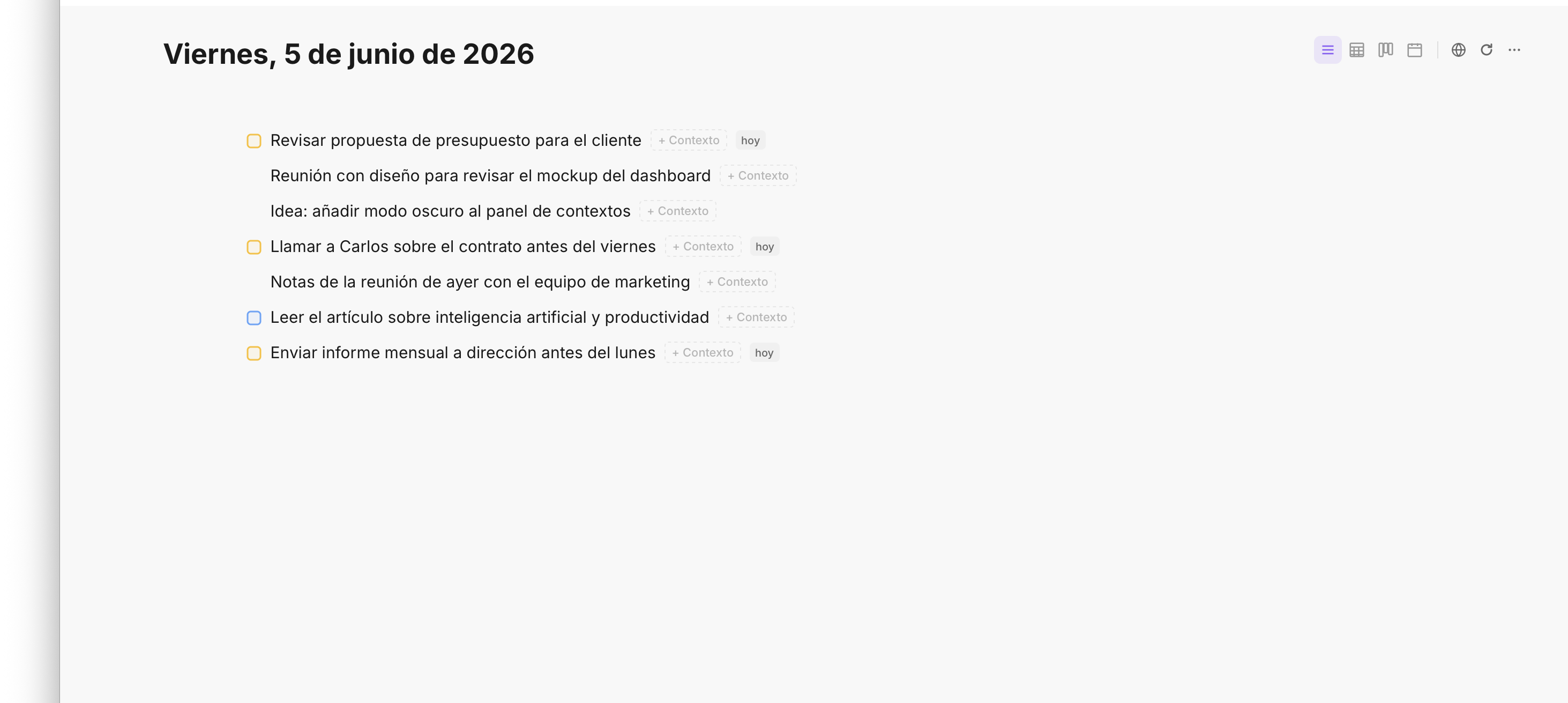
Captured content becomes actionable — tasks, notes, resources — all in one place
How to set it up
- Install the Fromly extension from the Chrome Web Store.
- Log in with your Fromly account — same credentials, no separate setup.
- Pin the icon to your toolbar for one-click access.
- That's the entire setup process.
From the moment it's installed, every page and every selection in Chrome becomes something you can save in under two seconds. The extension works on any site — articles, documentation, YouTube pages, Twitter threads, PDFs opened in Chrome, anything.
What happens inside Fromly after you save
The captured content lands in Fromly as a structured item, inside its context. The source URL is preserved. If you saved a text selection, it appears as the note's content. If you saved a full page, the title becomes the item's title and the URL is linked.
Fromly then treats it like anything else you've saved — you can add subtasks under it, link it to a project, surface it with a filter, or let the chat reference it when you ask a question later. Your capture isn't isolated. It's connected.
Most capture tools stop at saving. Fromly starts there. What you clip from the browser can become a task, a reference, a resource in a context — whatever you need it to be.
A note on what this replaces
If you use bookmarks, Pocket, Notion Web Clipper, or a "save to app" shortcut — the Fromly extension replaces all of them for anything you actually want to do something with. Bookmarks are passive. Fromly is active. The moment something lands in Fromly, it's part of your system, not a separate archive you have to go check.
The extension doesn't try to do everything. It does one thing with zero friction: get the right content from the web into Fromly, fast. Fromly handles the rest.
Bottom line
Install it once, and the web becomes an input layer for your work. Anything worth keeping — an article, a quote, a tool, a page — takes two seconds to capture and ends up exactly where you can act on it. No more context-switching, no more lost references, no more "I saved that somewhere" moments.