In this article
What time blocking is and why it works
Time blocking is a productivity technique where, instead of keeping an open task list, you assign specific time blocks on your calendar to each task or type of work. Instead of "I need to do X today", you think "from 9 to 11 I do X, from 11 to 12 I do Y".
The evidence behind time blocking is solid: when you have a reserved block for a task, you're less likely to procrastinate, there's less task-switching, and you get better at estimating how long things actually take.
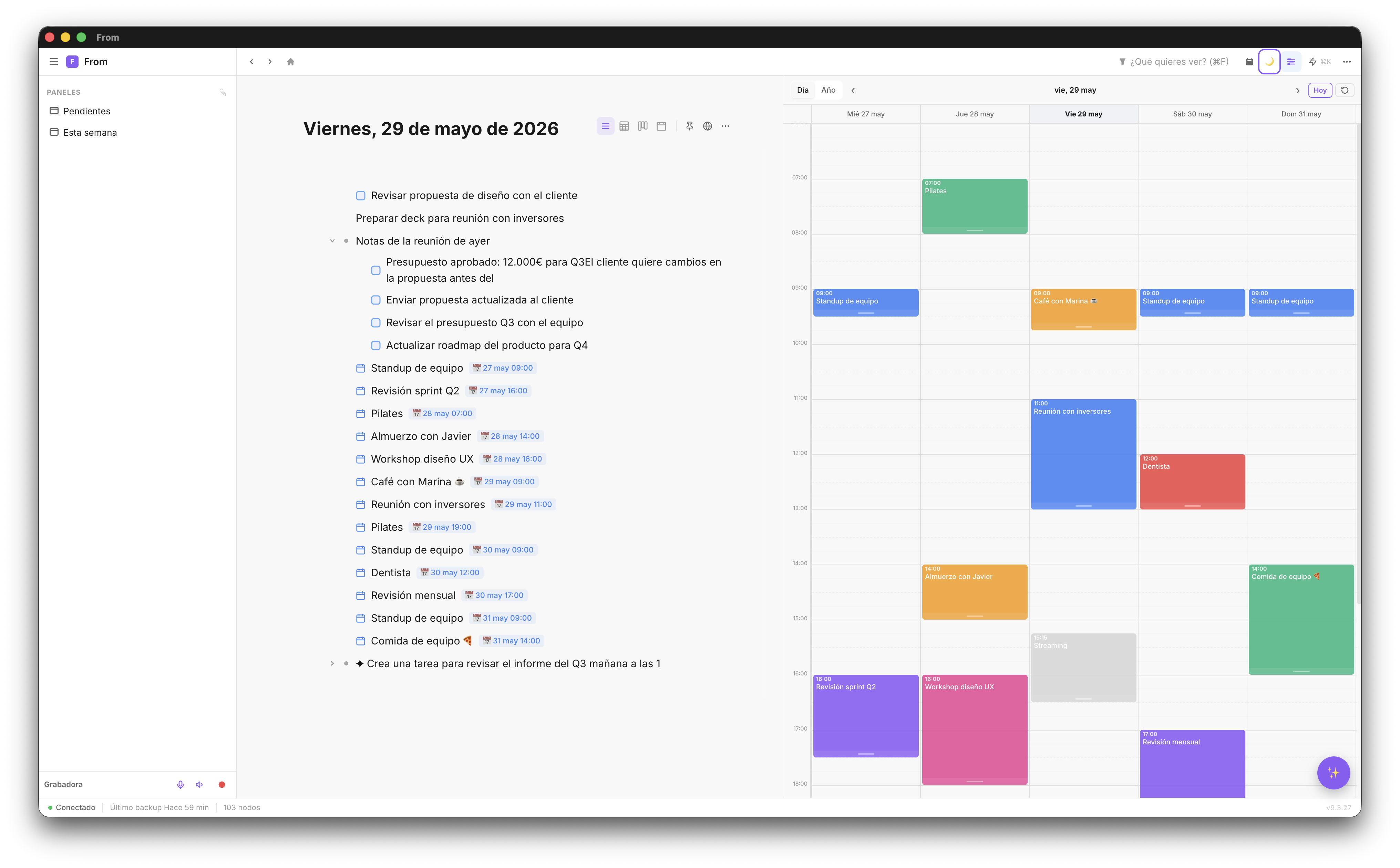
The historical problem with time blocking is that it required jumping between your task app and calendar. In Fromly, they're integrated: you write your tasks in the central chat, and the visual planner coexists on the same screen, with the Today column always ready to drag them onto the timeline.
Fromly's planner: instant access
Fromly's planner opens from the "Planner" button in the chat header, or with the P key from anywhere in the app. It opens as a right-side panel that coexists with the chat and your contexts — you can see everything at once. When it opens, the right column automatically stays on the Today tab, with your day's agenda ready to drag straight onto the timeline.
There are two main views:
- Day view — Shows the hours of the current day with time blocks
- Week view — Full week view, ideal for Monday planning
You can zoom in on the planner to see 30-minute blocks in more detail, or zoom out to see the full week at a glance.
⌨️ Shortcut: P opens and closes the planner. While it's open, you can keep using the chat normally — the planner is a side panel, not a full screen.
Google Calendar integration
If you connect your Google Calendar, all your events appear directly in Fromly's planner. Meetings, commitments, recurring events — all visible in the same view as your notes and tasks.
Sync is real-time: if someone adds you to a meeting in Google Calendar, it appears in Fromly within seconds. If you create an event in Fromly, it appears in Google Calendar.
How to plan your week in 15 minutes
The weekly planning ritual with Fromly is simple. Do it every Monday morning:
- Open the week view with P → Week
- Review fixed commitments — Google Calendar meetings are already there
- Check the Today tab — it opens with your pending tasks already listed, ready to drag
- Assign days to the most important tasks — tasks with dates appear on their day automatically
- Identify free slots and decide what deep work goes in each one
- Create time blocks directly in the planner for focused work
The weekly planning habit
The planner is only as useful as the habit you build around it. These are the rules that make the biggest difference:
- Fixed planning time — Monday before 10am, always. No exceptions.
- Daily review — Every morning, 5 minutes looking at today's view in the planner
- Respect the blocks — If you blocked 9–11 for deep work, defend that time
- Real-time updates — If something urgent comes up, move the block in the planner immediately
The advantage of having the planner integrated with the chat and your contexts is zero friction. When something changes, you change it right where you are. No need to open another app.
Plan your week with Fromly
Visual planner + Google Calendar + notes. All in one app.
Create free account →