In this article
Asking vs. filtering: two ways to find something
Retrieval is as important as capture. A system where you store everything but can't find anything has the same practical value as storing nothing. Fromly solves this in two complementary ways.
The first, and the fastest: you ask the central chat directly. "Find my notes about client García", "what did I write down from Tuesday's meeting?" — the AI understands the question and answers with what you already have saved, no filter required. The second: when you want to explore on your own, compare, or review several things at once, the Elements tab (right column) is the search across everything you've saved, with its own filter levels.
One-click chips in Elements
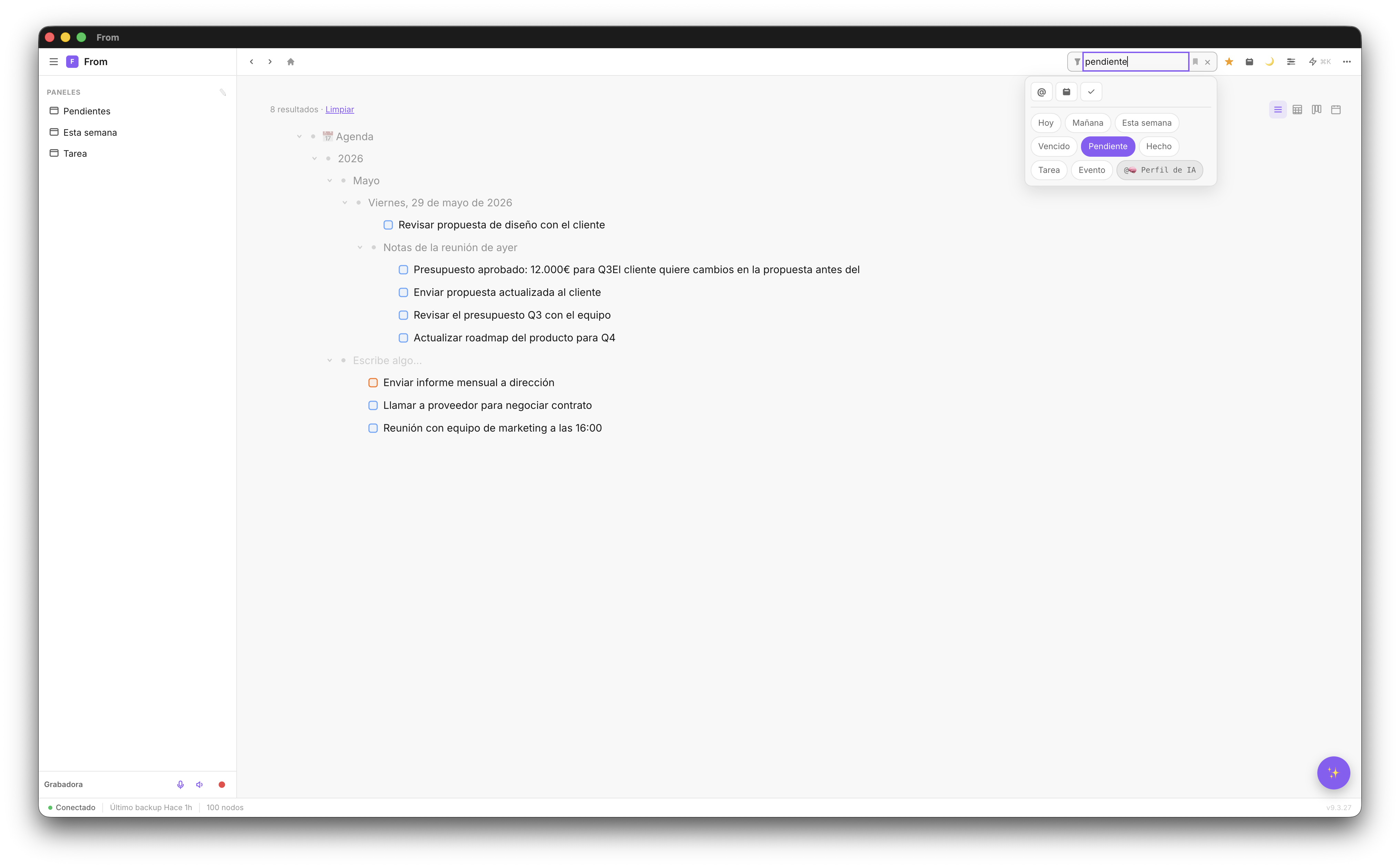
Inside the Elements tab, chips are predefined filter buttons available with a single click:
Today— Everything in today's noteTomorrow— Everything in tomorrow's noteThis week— Everything in the next 7 daysOverdue— Tasks with a past date that aren't completePending— All unchecked tasksDone— Completed tasksTask— Only items marked as tasksEvent— Only calendar events
You can combine chips: "Pending" + "This week" shows pending tasks for the next 7 days. "Overdue" + "Task" shows only overdue tasks, excluding notes.
Text and natural language
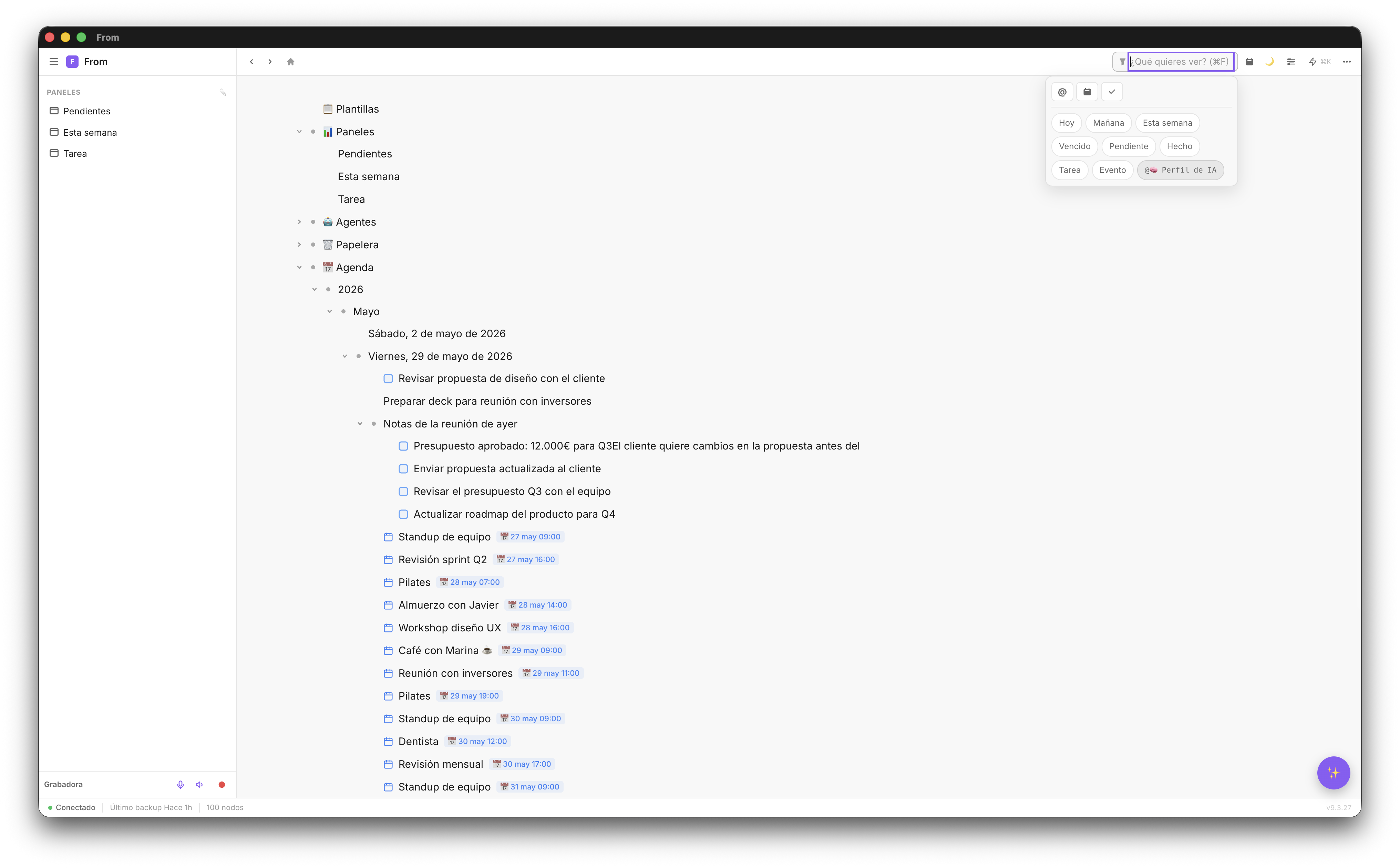
If chips aren't enough, you can type directly into the Elements search. Fromly accepts two kinds of text input:
Text search
Type any word and Fromly filters everything that contains it. Search is real-time — results appear as you type.
Natural language in the chat
But the most natural way isn't typing into a filter box: it's asking Fromly directly. "Meeting notes from last week", "tasks for the web project", "everything related to client García" — write it to the chat the way you'd say it to a colleague, and the AI brings back exactly that.
Saved filters
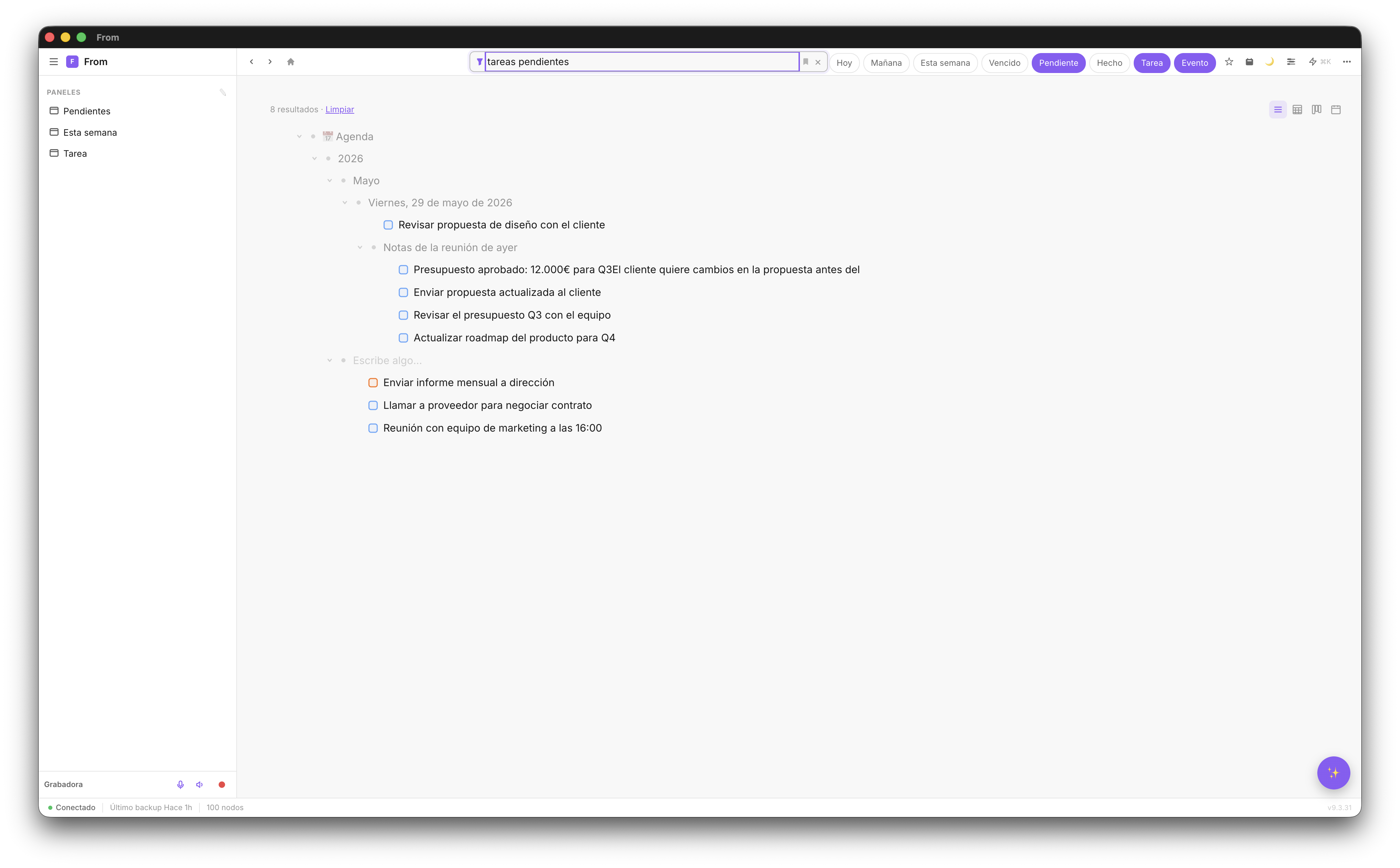
Filters you use more than once can be saved as a quick view inside Elements. One click and the filter applies immediately — no rebuilding it every time.
Fromly ships with two default views: "Pending" and "This week". You can add your own from the save-filter menu on any active filter.
Filters users add most often:
- "Overdue" — To review what's running behind
- "Learning this week" — To filter recent learning notes
- "Unprocessed ideas" — To review ideas pending evaluation
- "This week minus today's tasks" — To plan the rest of the week
💡 Advanced tip: The "Task" chip in Elements acts as your universal task inbox — it shows every task in the system, regardless of which context it lives in. Perfect for the weekly review.
Most useful filter combinations
These are the combinations that deliver the most value day to day:
- Pending + Today — The tasks you need to do today. Your daily list.
- Overdue + Task — Tasks running behind. Urgency review.
- This week + Event — All your commitments for the week. Agenda view.
- Pending + This week — Your plan for the week. Foundation for Monday planning.
- Done + Today — What you completed today. For end-of-day review.
Results with context, not an endless tree
Unlike the flat search in other apps, every result in Fromly tells you which context it belongs to — the Area or Project where that note, task, or event lives. If you have a note in "Work" and another with the same name in "Personal", the context tells you which is which without opening either one.
Since each item lives in a single context (not scattered across multiple cross-tags), there's no ambiguity about where something is saved: you find it, or Fromly tells you exactly where it is.
Find everything in seconds with Fromly
Ask the chat, or use the Elements filters. Free to start.
Create free account →