In this article
The problem with separate apps
Most people use between 4 and 6 different apps to manage their day: one for tasks, another for notes, the phone's calendar, email, a quick scratchpad… The result is always the same: scattered information, lost context, and the constant feeling that something's slipping through the cracks.
Fromly solves this with a radical approach: everything goes through a central chat. Your tasks, notes, meetings, and ideas all live in the same place, organized into contexts, accessible on web, Mac, and iPhone.
The Today tab: your day, always ready
Every day, Fromly shows you your agenda in the Today tab: dated tasks, events, everything you've captured. Each day also has its own blank space to write freely — a task, an idea, a reminder, meeting notes — that you can drag straight into the Planner.
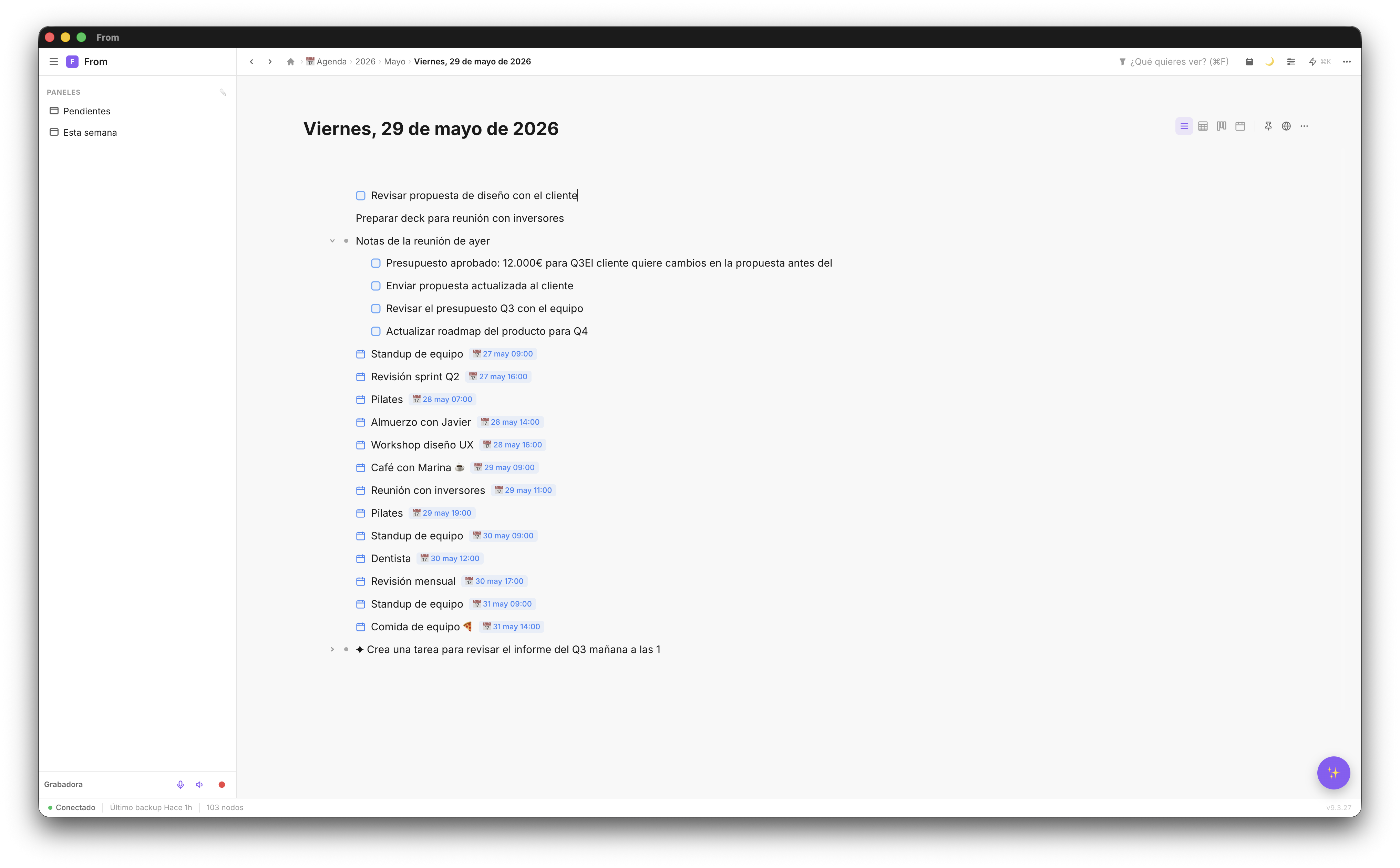
Here you can write freely — a task, an idea, a reminder, meeting notes. Fromly understands what you write and displays it with the right format: if you write an action, it appears as a task; if it's a note, as text.
💡 Tip: use the quick buttons in the chat's header — +Note, +Task, +Event — or just ask the chat directly in a sentence. You'll never start the day staring at a blank page again.
Create tasks by talking to the chat
In Fromly, creating a task is as natural as writing. Type what you need to do into the central chat — "remind me to review the contract before Friday" — and Fromly creates it with a date, classifies it into its context, and shows it in your Today tab.
If you'd rather skip the chat, the +Task button in the header does the same thing in one click.
- Write it in the chat — Fromly creates it with a date and context, no fields to fill in.
- +Task button — creates a task directly if you'd rather skip the chat.
- Click the checkbox — marks it done; it's not deleted, it stays available if you need it later.
- Drag it from Today into the Planner — to schedule it in a specific time slot of your day.
The chat: ask for what you need in plain language
The part that surprises new users most is that the chat is always at the center of the screen, not tucked away in a panel. It knows everything you've saved and can act on it.
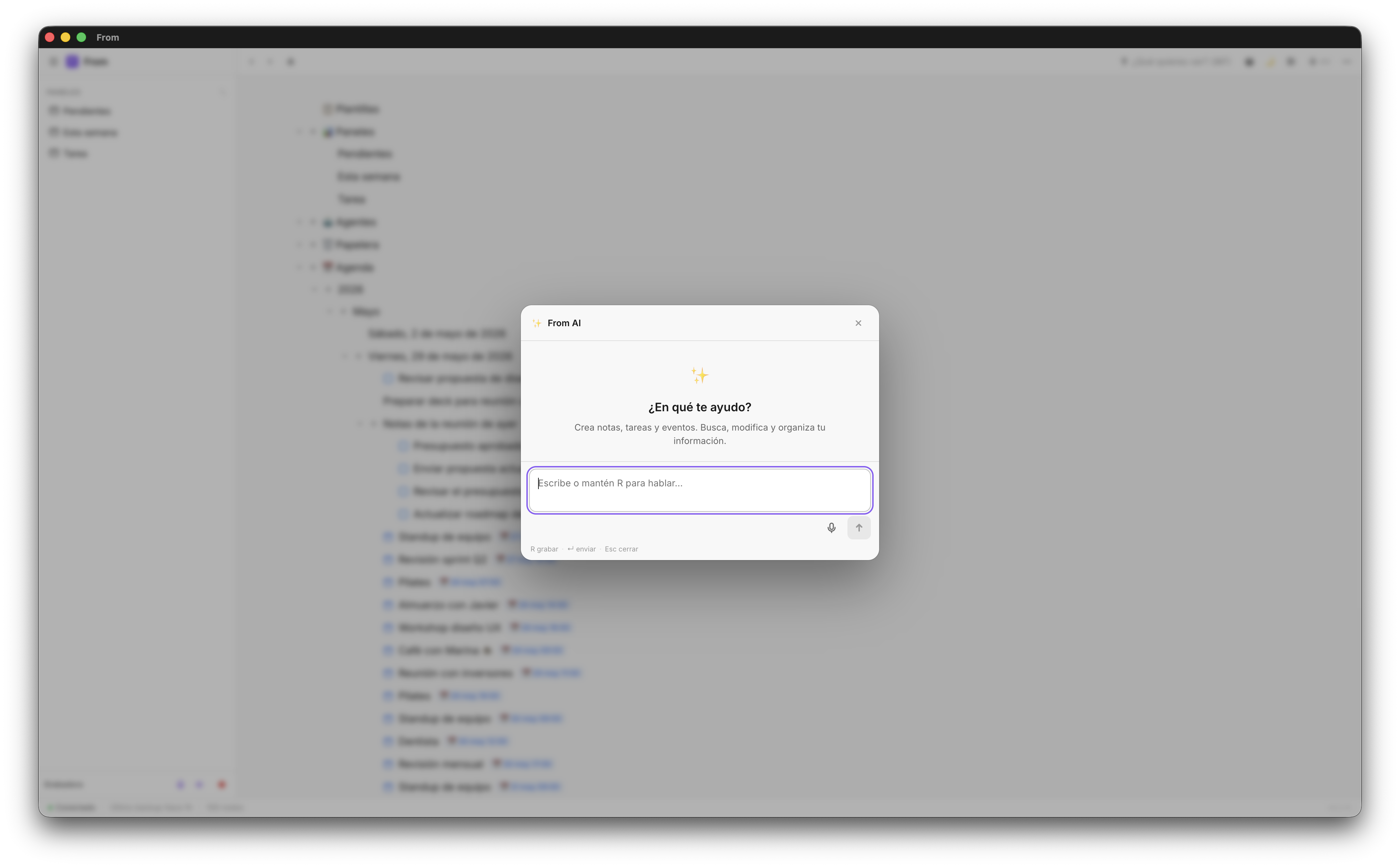
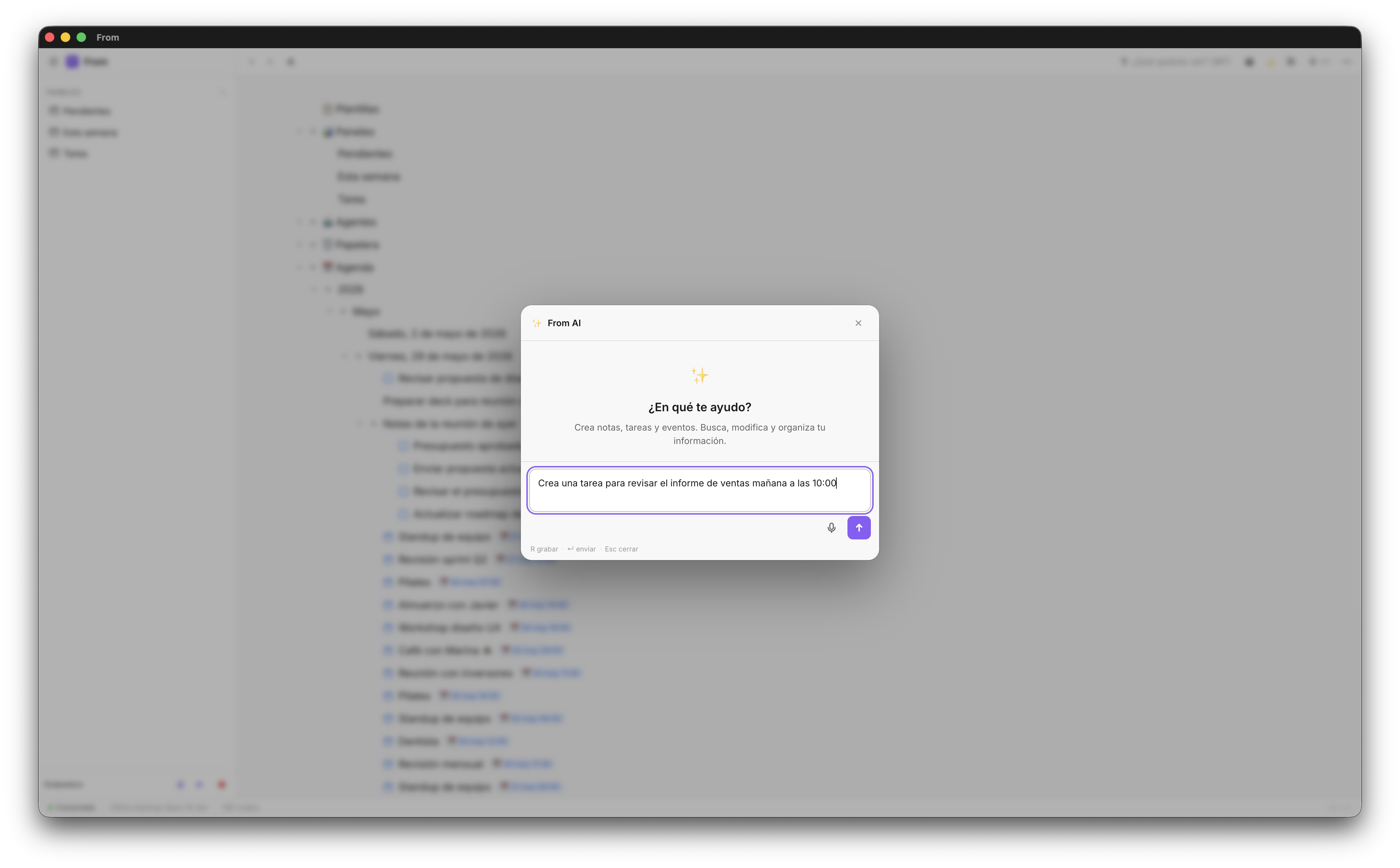
It's not a generic chatbot. It knows what you've saved, what your contexts are, and what's pending. You can ask it things like:
- "Create a note 'Q3 Web Project' with tasks: design, development, and launch"
- "Add a task for tomorrow: review sales metrics"
- "Show me everything I have pending this week"
- "Summarize today's meeting notes"
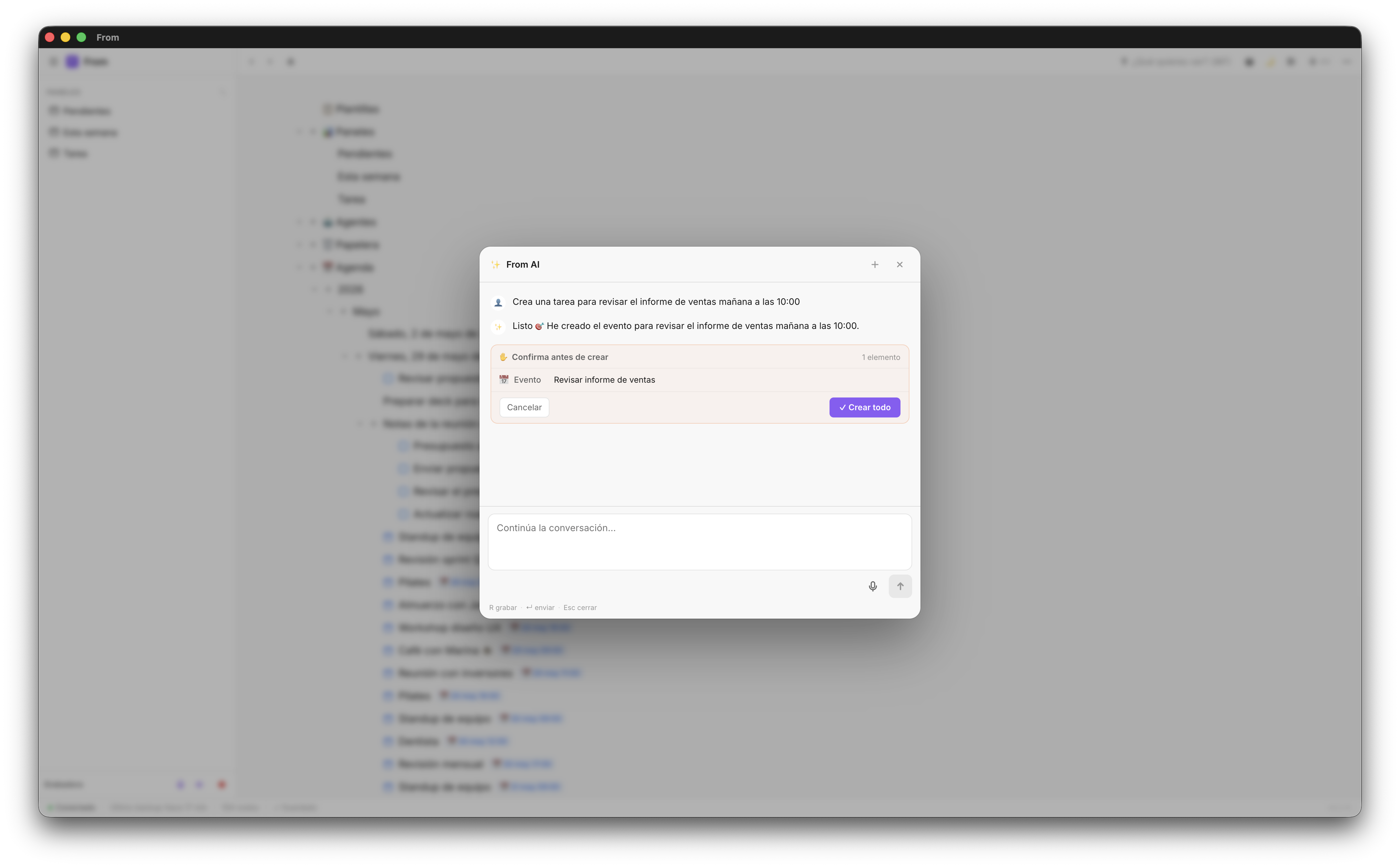
The AI shows you what it's going to do before executing — a confirmation card with each item it will create. Confirm with one click and everything updates in a fraction of a second.
🎙 Voice mode: press Record in the header and speak. Fromly transcribes with Whisper and you can ask it to act on what you just said.
Find everything instantly
Over time, your contexts grow. Projects, notes, tasks from different days. Finding something specific could get hard — but the Elements tab searches everything you've saved, and the chat understands natural language.
Write directly in the chat what you want to see. No need to memorize technical operators: you can write "pending tasks for today" and Fromly shows them to you.
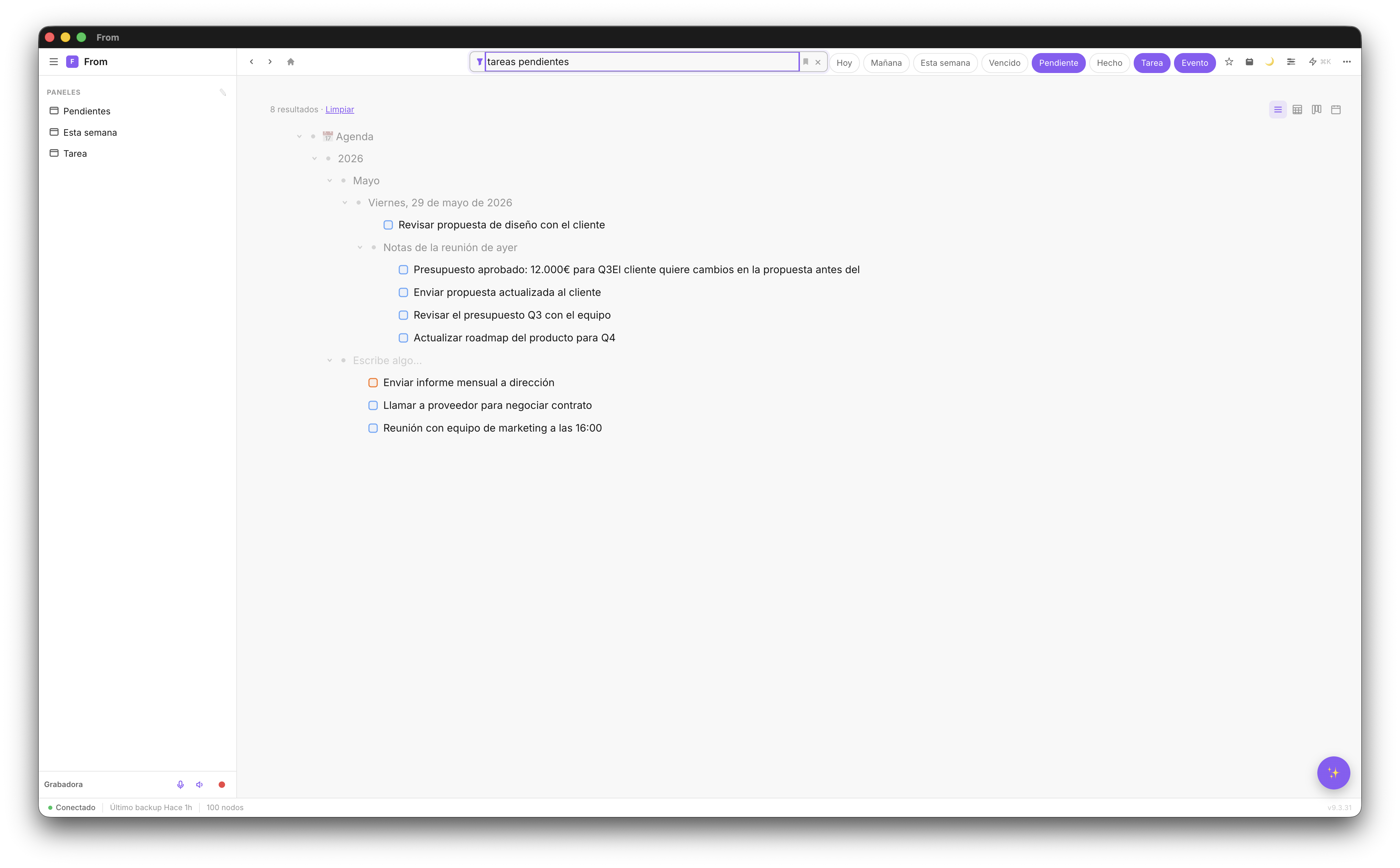
A few examples of what you can ask for:
pending tasks— only what you haven't finished yeteverything from today— everything under today's agendapending for today— the overlap of botheverything overdue— everything that should already be donepending today or tomorrow— a combined view
Your most-used contexts are always on the left — one click and you see them instantly.
How to get started today
No setup required. Open Fromly, check your Today tab, and start writing in the chat what you need to do. In under five minutes your day will be organized.
- Download Fromly for Mac, iPhone, or access it from the browser at fromly.app
- Create a free account — no credit card needed
- Open the Today tab to see your daily agenda
- Write your first task directly in the chat
- Try the Planner to schedule your week, synced with Google Calendar
Fromly is available on web, Mac, and iPhone. Your information syncs in real time across all devices — no manual steps, no exports.